Last updated: November 2026
Key takeaways
- Accessible PDF remediation fixes an existing PDF so screen reader and keyboard users can use it: correct tags, reading order, alt text, table headers, title and language.
- For U.S. public universities, ADA Title II uses WCAG 2.1 Level AA as the standard. As of November 7, 2026, ADA.gov lists April 26, 2027 as the compliance date for public entities with a total population of 50,000 or more.
- Not every PDF should be fixed. The RACE triage (Remediate, Archive, Convert, Eliminate) sorts files before work starts.
- Checkers such as PAC and Acrobat Pro catch structural errors. A person must still judge alt text, reading order and table headers.
- Effort depends on scans, tables, math, charts and forms far more than on page count.
University websites and course platforms often hold large numbers of PDFs: syllabi, lecture notes, policy documents, forms and scanned readings. Many of them were never built for screen readers. This guide explains accessible PDF remediation for accessibility coordinators, instructional designers and digital teams who need a clear, repeatable process.
It covers the standards that apply, a six-step workflow, a triage model for deciding what to fix, testing, and the factors that drive effort.
Have a PDF backlog? Send us one chapter or a short course file and request a free sample task to see remediated output first.
What is accessible PDF remediation?
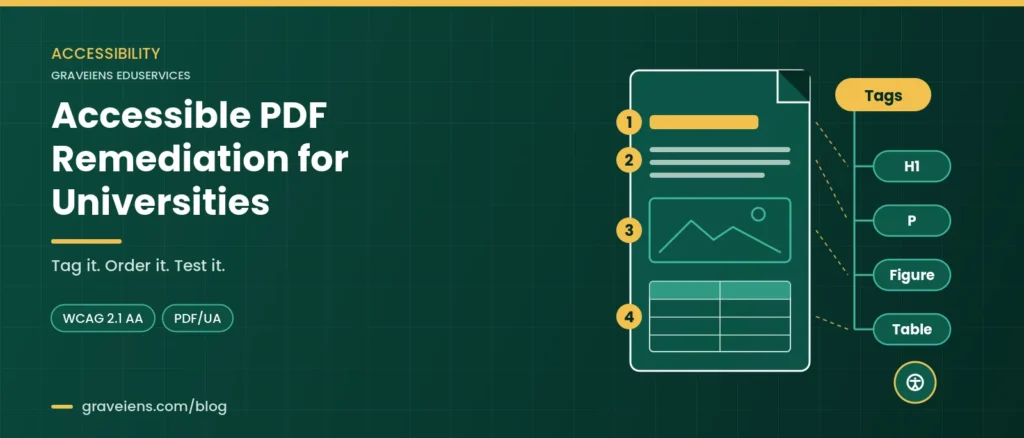
Accessible PDF remediation is the process of repairing an existing PDF so people using assistive technology can read and navigate it. It adds or corrects tags, sets a logical reading order, writes alt text, marks table headers, labels form fields, and sets the title and language. The target is usually WCAG 2.1 AA and PDF/UA.
A screen reader does not read the page visually. It reads the tag tree, a hidden structure that labels each heading, list and figure. If tags are missing or wrong, the content comes out jumbled or silent.
The building blocks of a tagged PDF
- Tags: Structure labels such as H1 to H6, P, L (list), Table, Figure and Link.
- Reading order: The sequence a screen reader follows. It must match the logical order.
- Alt text: Descriptions for meaningful images. Decorative images become artifacts.
- Tables: Header cells (TH) linked to data cells, with scope set for rows or columns.
- Headings and bookmarks: A logical heading outline, plus bookmarks in longer files.
- Document properties: A meaningful title and a primary language setting.
- Forms: Labeled fields and a logical tab order.
Which standards apply: WCAG 2.1 AA, PDF/UA and Section 508
WCAG 2.1 Level AA from the W3C is the outcome standard. It defines what users must be able to do, such as perceive text alternatives and navigate in a meaningful sequence. See the WCAG 2.1 specification.
PDF/UA (ISO 14289) is the PDF-specific technical standard. According to the PDF Association, ISO 14289-1:2014 (PDF/UA-1) applies to PDF 1.7 files, and ISO 14289-2:2024 (PDF/UA-2) has been published for PDF 2.0. It also notes that PDF/UA alone does not guarantee accessibility, for example with poor color contrast.
Section 508 covers federal agencies. Section508.gov states that the Revised 508 Standards incorporate WCAG 2.0 Level AA for web and non-web content.
In short: WCAG 2.1 AA tells you what the user needs. PDF/UA tells you how the PDF should be built to deliver it.
Why accessible PDF remediation matters under ADA Title II
ADA Title II requires state and local government entities, including public colleges and universities, to make web content meet WCAG 2.1 Level AA. The Department of Justice defines web content to include documents, so PDFs on public websites and learning platforms are in scope.
On April 20, 2026, the DOJ published an interim final rule in the Federal Register that extended the compliance dates by one year. As of November 7, 2026, the ADA.gov fact sheet lists these dates:
- April 26, 2027: state and local government entities with a total population of 50,000 or more.
- April 26, 2028: entities with a population under 50,000, and special district governments.
The extension changed dates, not the standard. WCAG 2.1 Level AA is still the technical requirement. ADA.gov also explains that a smaller part of a larger government uses the population of the government it belongs to. A public university that is part of state government will usually fall under the 2027 date, but confirm this with your counsel. For a full breakdown of scope and dates, see our ADA Title II deadline guide for higher education.
Exceptions that affect your PDF backlog
Two exceptions in the rule shape which PDFs you must remediate. Both are narrower than many teams assume.
- Preexisting conventional electronic documents: PDFs, word processing files, presentations and spreadsheets posted before your compliance date are generally exempt. The exception does not apply to documents people currently use to apply for, access or participate in your services, such as an application form.
- Archived web content: All four conditions must hold: created before the compliance date, kept only for reference or recordkeeping, stored in a marked archive area, and unchanged since archiving.
The IFR also notes that the DOJ removed proposed course-content exceptions for public educational institutions from the 2024 final rule. Course PDFs posted after your compliance date need to conform. Even exempt files still fall under the ADA duty of effective communication. If a student asks for an accessible version, you must provide one.
UK and EU readers: UK public sector bodies follow the Public Sector Bodies Accessibility Regulations 2018. GOV.UK guidance sets WCAG 2.2 AA as the standard and exempts PDFs published before September 23, 2018, unless people need them to use a service.
How to do accessible PDF remediation: a six-step process
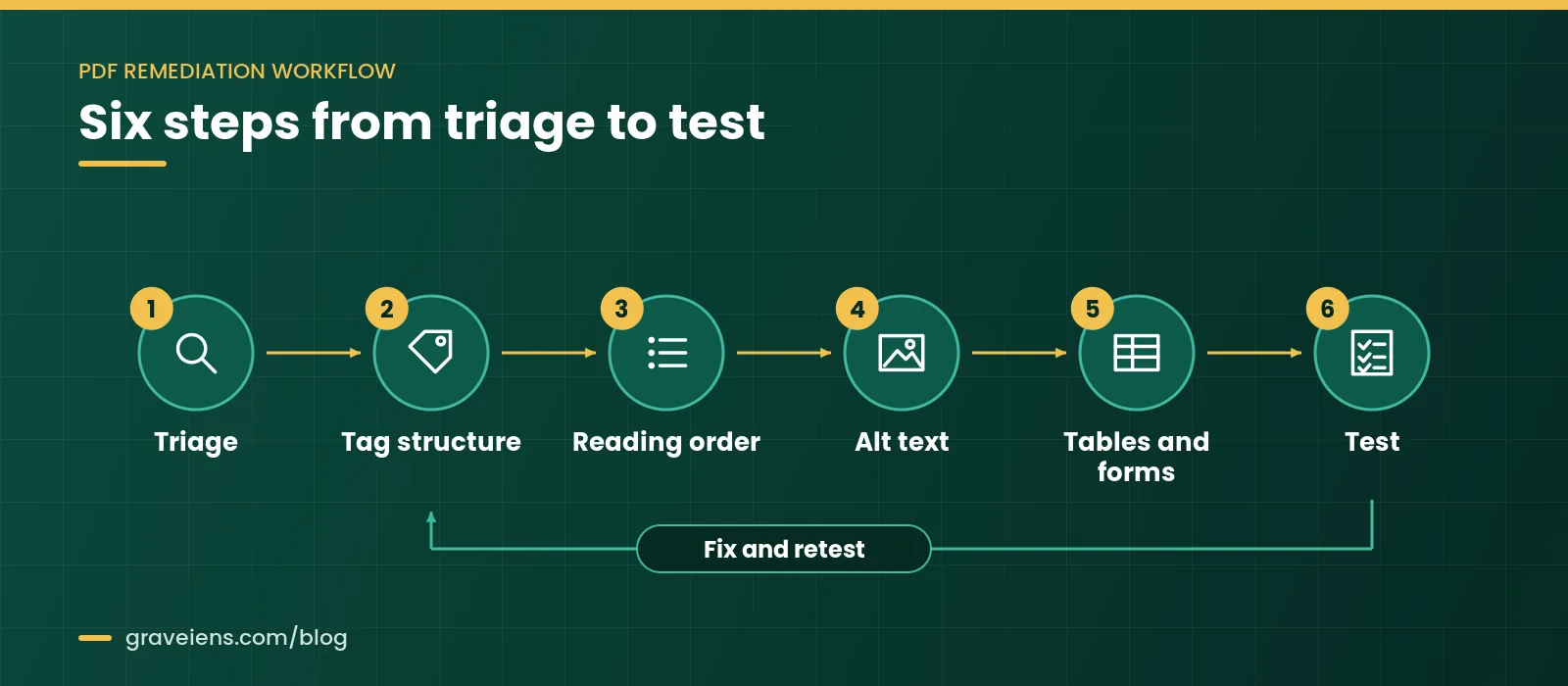
To remediate a PDF, first decide whether it should stay a PDF. Then tag its structure, fix the reading order, add alt text, and repair tables and forms. Set the title, language and bookmarks. Finally, test with an automated checker and a manual screen reader review, and retest after fixes.
Step 1: Triage and prepare the file
Run the RACE triage (below) so you only fix files that must stay PDFs. If you have the original Word, PowerPoint or InDesign file, fix it there and re-export with tags. Fixes made at the source survive the next export.
If the PDF is a scan, run optical character recognition (OCR) first. Without it, a screen reader finds no text. Proofread names, numbers and formulas.
Step 2: Tag the structure and set document properties
Auto-tagging is a starting point, not a finish line. Review every tag. Check heading levels, list tags and link tags. Mark headers, footers and page numbers as artifacts.
Set the document title and show it instead of the file name. Set the primary language and tag passages in other languages. Add bookmarks to long documents.
Step 3: Fix the reading order
Reading order often breaks in multi-column layouts, sidebars and exported slides. The tag tree order must match the logical order. Keep captions next to their figures.
Step 4: Write useful alt text
Every meaningful image needs alt text that explains its purpose in context. A chart needs its key trend or values. Complex STEM figures may need a longer description in the text.
Step 5: Repair tables and forms
Tables need header cells tagged as TH with the right scope. Merged cells or two header rows may need header IDs. Layout tables should not be tagged as tables.
Give every form field a clear tooltip label and a logical tab order. Test the form with a keyboard alone.
Step 6: Test, fix and retest
Run an automated check, then a manual screen reader review. Fix each issue and run both checks again. Keep a short test report per file.
Remediate, convert or retire? The RACE triage framework
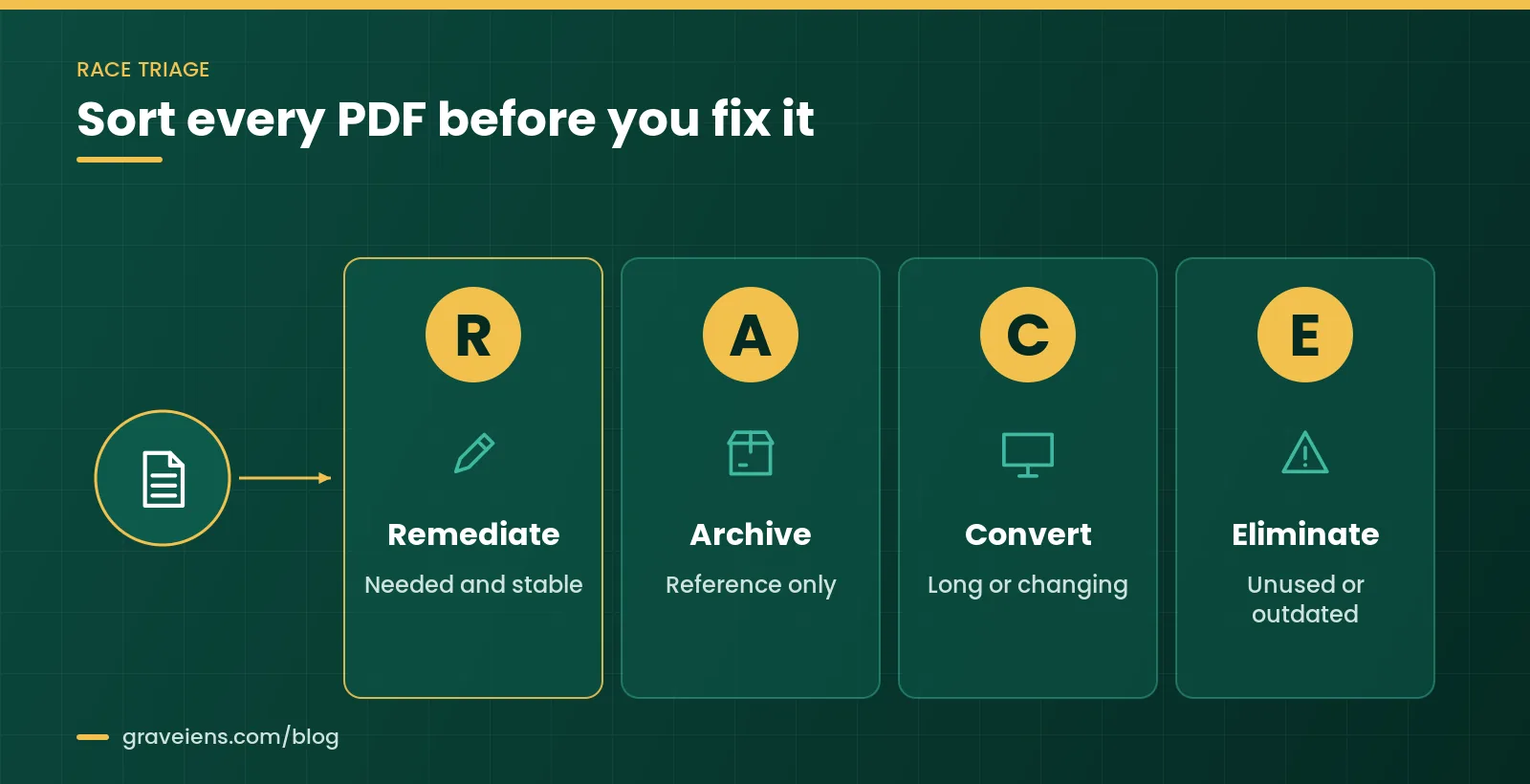
The RACE triage is a four-way decision we use to sort a PDF backlog before any repair work starts. Each file goes to one bucket: Remediate, Archive, Convert or Eliminate. It stops teams spending hours fixing PDFs that should have become web pages, or that nobody opens.
R: Remediate
Keep and fix the PDF when it is needed, stable, and the fixed layout matters. Examples include signed policies and official forms. This is where full accessible PDF remediation pays off.
A: Archive
Archive a file only when all four archive conditions are true. Keep a process ready to supply an accessible version on request.
C: Convert
Convert to HTML or EPUB when content is long, updated often, read on phones, or used as course reading. Our guide to converting PDF to EPUB explains the trade-offs. Our digital and EPUB conversion services cover the production work.
E: Eliminate
Retire files that are outdated, duplicated or unused. Check analytics and links first. Removing a stale PDF is often the cheapest fix.
RACE triage checklist
- Do people use this file to apply for, access or take part in a service? If yes, go to R or C.
- Has anyone opened it in the past year? If no, consider E.
- Will the content change in the next year? If yes, lean toward C.
- Is it longer than a short handout, or mostly read on mobile? If yes, lean toward C.
- Must the layout stay fixed for legal, print or signature reasons? If yes, choose R.
- Is it kept only for reference, unchanged and created before your compliance date? If yes, A may apply.
In short: Fix only what must stay a PDF, convert what people read and update, archive what meets every condition, and retire the rest.
Need help sorting a large backlog? Get a scoped quote after a quick review of a sample of your files.
How do you check whether a PDF is accessible?
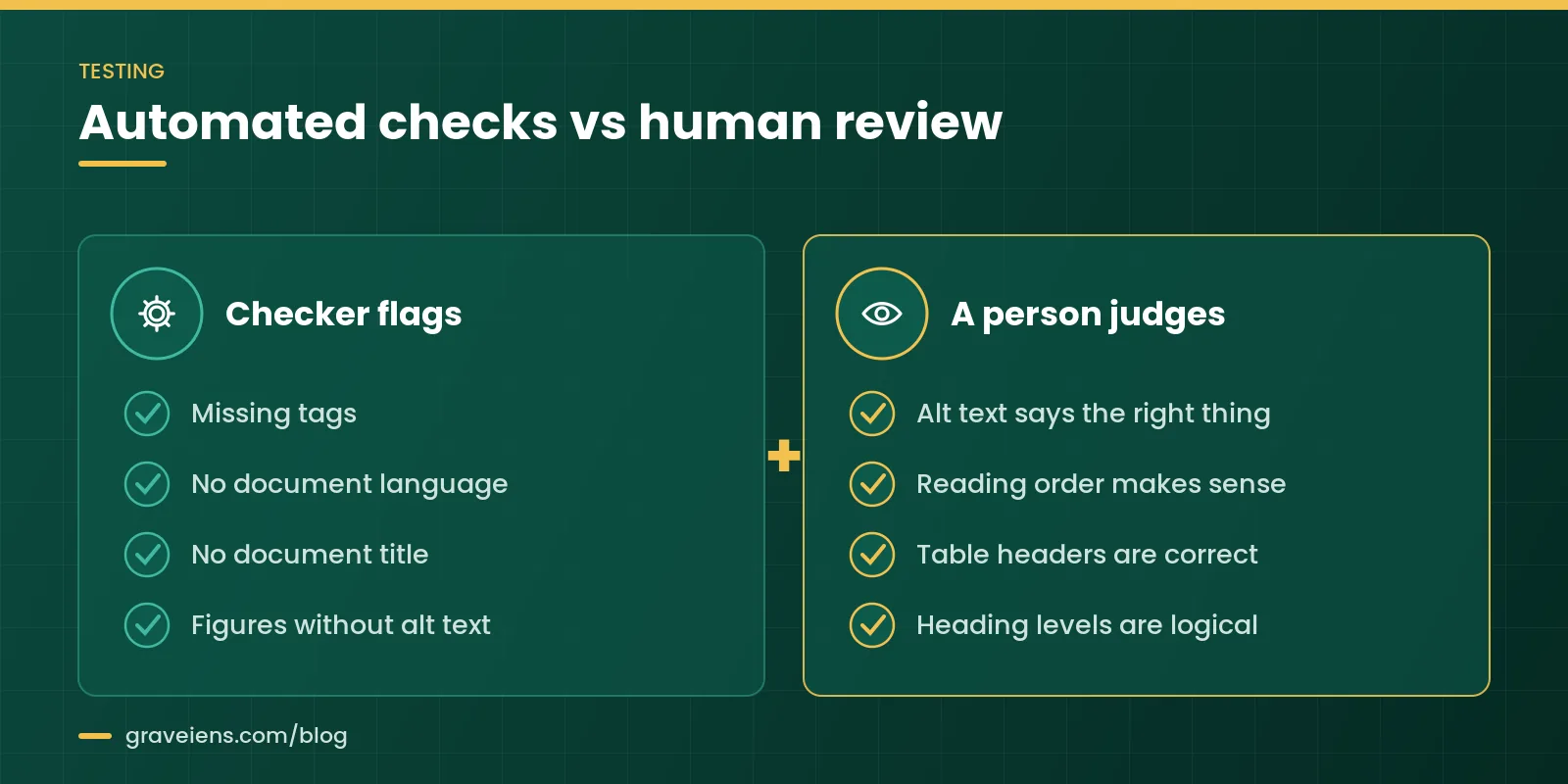
Check a PDF in two layers. First, run an automated checker such as PAC or the Adobe Acrobat Pro accessibility checker to catch structural errors. Then review it manually with a screen reader. Only a person can judge alt text quality, logical reading order and correct table headers.
Automated checkers
PAC (PDF Accessibility Checker): According to its publisher support page, PAC is freeware, the newest version is PAC 2026, and it runs on Windows. It checks all machine-testable checkpoints of the Matterhorn Protocol for PDF/UA and of WCAG 2.1. It also offers a screen reader preview and a tag tree view.
Adobe Acrobat Pro accessibility checker: Adobe documents a “Prepare for accessibility” tool that checks a PDF. It reports each rule as Passed, Failed, Skipped By User or Needs Manual Check. Items marked Needs Manual Check must be verified by a person. It also includes a Reading Order tool.
Use at least one checker on every file.
Manual checks no tool can replace
- Listen to the file with a screen reader such as NVDA, JAWS or VoiceOver, and confirm the reading order.
- Check that each alt text conveys what the image shows.
- Check that table headers are announced correctly for each data cell.
- Confirm heading levels follow a logical outline without skipped levels.
- Tab through links and form fields with a keyboard only.
- Check color contrast and that color is not the only way information is shown.
How much effort does accessible PDF remediation take?
Effort depends mainly on content complexity, not page count. Text-only PDFs exported from a clean source are quick. Scanned pages, complex tables, math, charts, multi-column layouts and fillable forms all add manual work and testing time. Having the original source file usually lowers effort.
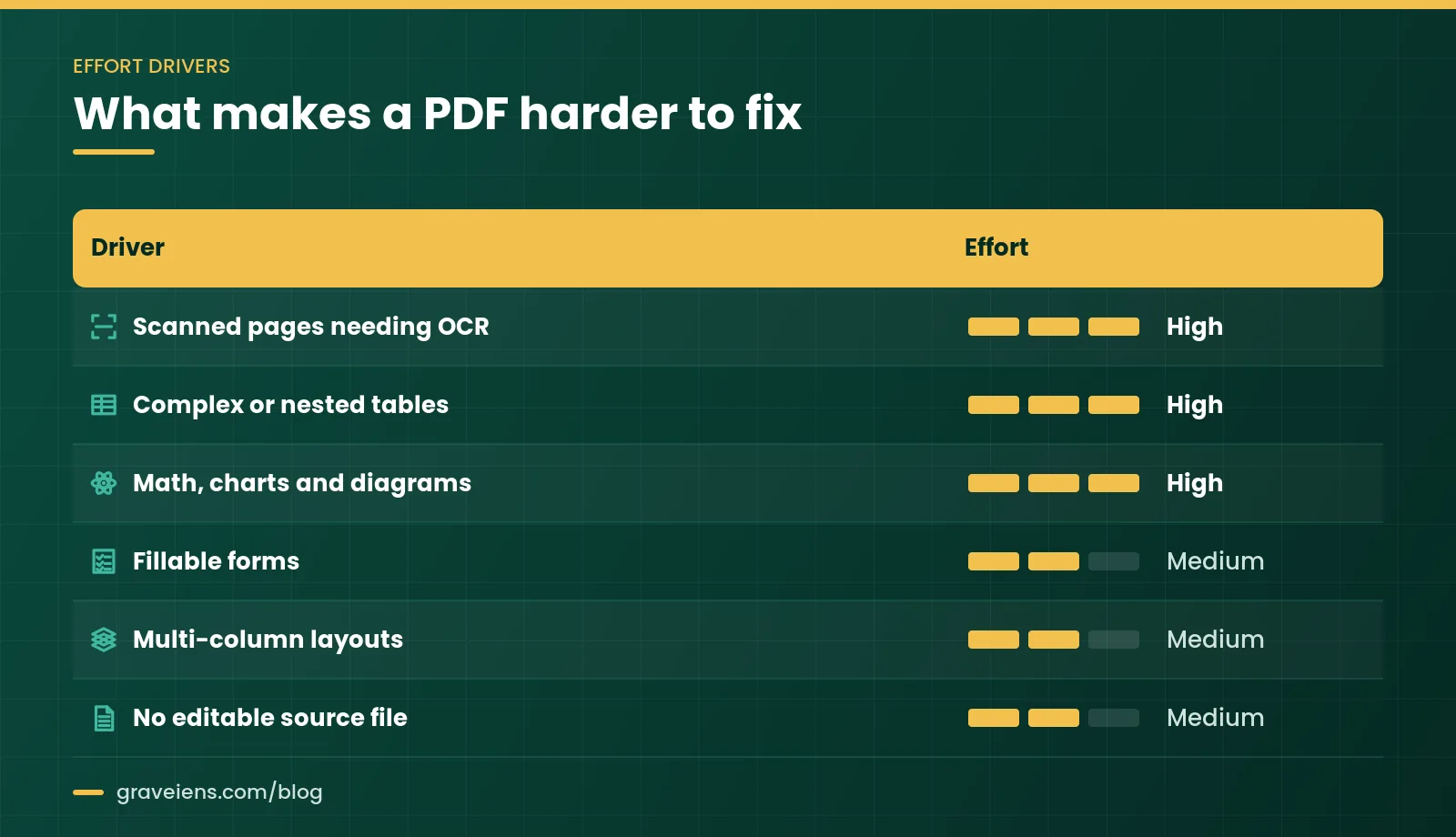
| Effort driver | Why it adds work | How to reduce it |
|---|---|---|
| Scanned pages | Need OCR, proofreading and full manual tagging | Find a digital original or retype short items |
| Complex tables | Merged cells and multi-level headers need header IDs | Simplify or split tables at the source |
| Math, charts and diagrams | Need expert alt text or long descriptions | Write descriptions with subject experts once, then reuse |
| Fillable forms | Each field needs a label, tab order and testing | Move forms to accessible web forms where possible |
| Multi-column layouts | Reading order often breaks across columns and boxes | Use styles and single-flow templates |
| No source file | All fixes happen in the PDF and are lost on re-export | Keep and fix source files in a shared library |
A pilot is the most reliable way to estimate a backlog. Remediate a small set of files that reflect your real mix, then plan from the results. Our guide on how to choose an accessibility remediation vendor lists the questions to ask before you sign.
Common PDF remediation mistakes to avoid
Watch for these repeat mistakes in your own work and in vendor deliverables.
- Trusting auto-tagging. Auto-tags often mislabel headings and tables.
- Treating a checker pass as compliance. A clean report cannot judge alt text or reading order.
- Fixing the PDF, not the source. The next export from Word or InDesign wipes out every fix.
- Using filler alt text. “Image” or a file name tells users nothing.
- Ignoring scans. An untagged scan is invisible to a screen reader.
- Assuming old files are exempt. Forms and documents still used for services are not covered by the preexisting documents exception.
- Remediating files that should be converted. Long, changing content often works better as HTML or EPUB.
In short: Triage first, fix at the source when you can, and never sign off a file without a manual review.
How GravEiens EduServices approaches accessible PDF remediation
GravEiens EduServices has supported education publishers and institutions since 2017. We have worked with 350+ global clients, with a team of 700+ experts, and have delivered 2M+ digital assets. Our quality system is ISO 9001 certified.
Projects run through our four-stage QA workflow: content creation, internal review, client review and final delivery. For PDFs, we triage your files with you and remediate the ones that should stay PDFs. Each file is checked before it reaches you and closed only after your review. Where conversion makes more sense, we scope HTML or EPUB output with you.
Explore our accessibility remediation services, or send us one chapter to pilot so you can judge the output on your own content.
Frequently asked questions about accessible PDF remediation
What is the difference between a tagged PDF and an accessible PDF?
A tagged PDF has a structure tree that labels headings, paragraphs, lists, tables and figures. An accessible PDF goes further: the tags are correct, the reading order is logical, images have meaningful alt text, and tables have real headers. Auto-tagging alone rarely gets you there.
Is a PDF that passes an automated checker ADA compliant?
Not necessarily. Automated checkers only test machine-testable rules, such as missing tags or a missing language setting. They cannot judge whether alt text is accurate, whether the reading order makes sense, or whether table headers are right. A trained person must review those items, ideally with a screen reader, before you call a file conformant.
What standard should accessible PDF remediation follow for ADA Title II?
The DOJ’s Title II rule names WCAG 2.1 Level AA as the technical standard for web content, and that includes PDFs posted online. Many teams also check against PDF/UA (ISO 14289), the PDF-specific accessibility standard, because it defines how tags and structure should work. Using both gives you a clear, testable target.
Do old PDFs on a university website need to be remediated?
Sometimes. The Title II rule exempts PDFs posted before your compliance date. It does not exempt documents people still use to apply for or access a service, such as forms. Archived content qualifies only if it meets all four archive conditions.
Should we convert PDFs to HTML or EPUB instead of fixing them?
Often, yes. Content that changes often, is read on phones, or runs to many pages usually works better as HTML or EPUB. Federal guidance on Section508.gov tells agencies to prioritize HTML and use PDFs only when necessary. Keep PDF for documents that must stay fixed, such as signed forms, official records or print-faithful layouts.
How long does accessible PDF remediation take?
It depends on the file, not just the page count. A short, text-only PDF from a clean Word file can be fast. Scans, complex tables, math, charts and forms take much longer because each needs manual work and checking. A small pilot gives the most reliable estimate.
See remediated output before you commit
Send us one chapter or a representative course PDF. We will triage it, remediate it to your target standard and show you the result.
Sources
- Federal Register: Extension of Compliance Dates for Nondiscrimination on the Basis of Disability; Accessibility of Web Information and Services of State and Local Government Entities (April 20, 2026)
- ADA.gov: Fact Sheet: New Rule on the Accessibility of Web Content and Mobile Apps Provided by State and Local Governments
- W3C: Web Content Accessibility Guidelines (WCAG) 2.1
- PDF Association: ISO 14289 (PDF/UA)
- Section508.gov: Create Accessible PDFs
- Section508.gov: Applicability and Conformance
- Adobe Help: Create and verify PDF accessibility (Acrobat Pro)
- axes4 Support: PDF Accessibility Checker (PAC)
- GOV.UK: Understanding accessibility requirements for public sector bodies
About the author
GravEiens EduServices Editorial Team. Our editorial team writes practical guides on accessible learning content, digital conversion and content production for education publishers and institutions. Articles draw on the work of our accessibility and production specialists and are checked against primary sources.

 Accessibility
How to Choose an Accessibility Remediation Vendor: 10 Questions to Ask
Hiring an accessibility remediation vendor? Use our 10-question scorecard to compare testing, formats and reporting. Request a free sample task.
 Accessibility
European Accessibility Act for Publishers: How to Remediate Your EPUB Backlist
European Accessibility Act publishers guide: EAA ebook rules, backlist timing, EPUB triage and cost drivers. Send 3 sample titles for…
 Accessibility
Alt Text for STEM Images: A Practical Guide for Publishers (with Examples)
Alt text for STEM images, with short alt and long description examples for graphs, geometry, chemistry and circuits. Get 25…
Get monthly EdTech insights
Trends, content tips and how-tos — once a month, no spam.